Device List
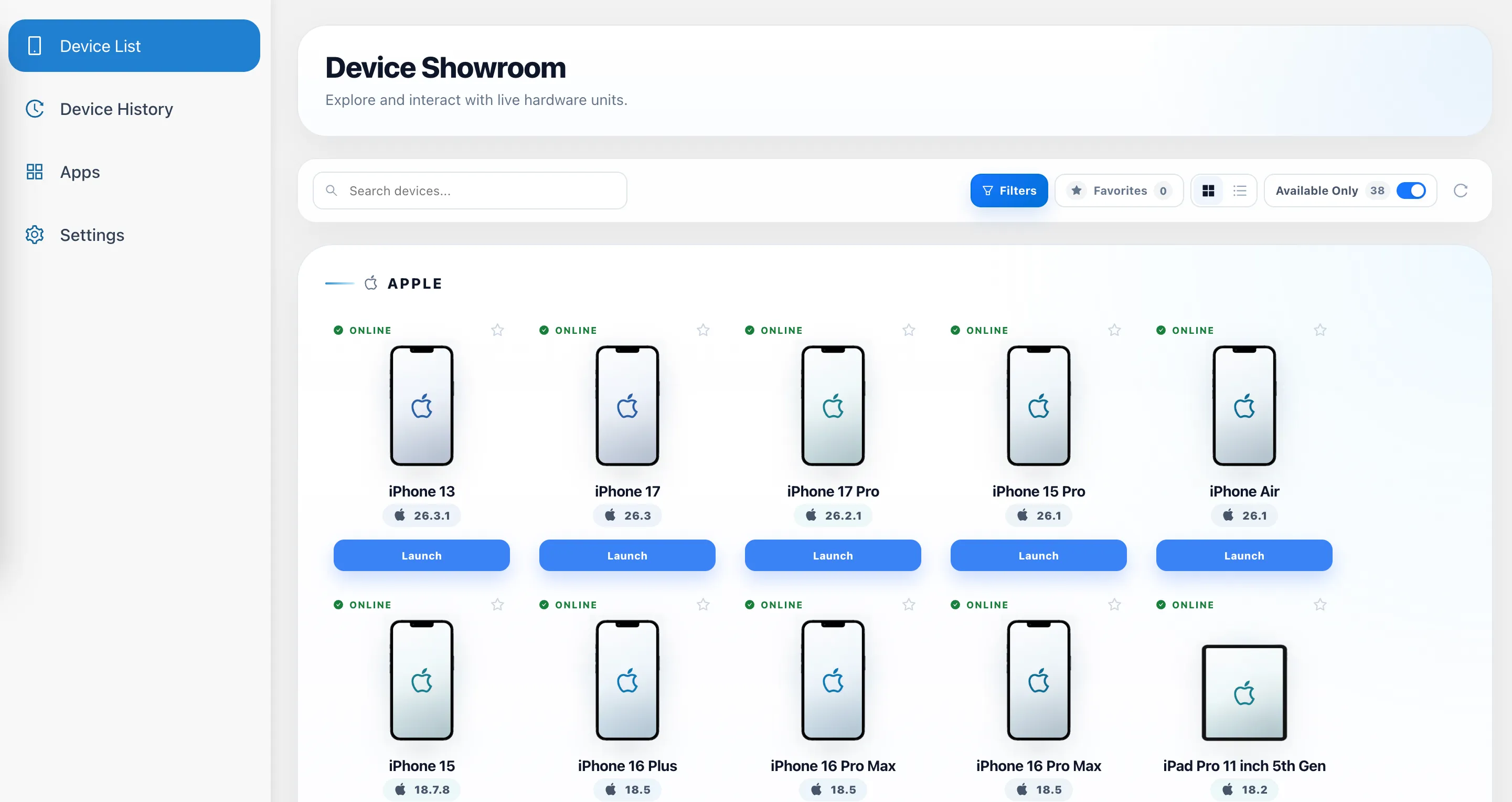
The Device List is the main entry point for Live Testing. It allows users to browse the devices available in their environment, check their current state, apply filters, mark frequently used devices as favorites, and launch an interactive testing session.
Devices are grouped by brand and displayed together with key information such as the device model, operating system version, and current status.
Device Information
Each device in the Device List displays the information required to identify and select the appropriate testing environment.
- Status – Indicates the current state of the device. An Online device is ready to use and can be launched for a Live Testing session.
- Device Model – Displays the model of the device, such as iPhone 17 Pro or iPhone 16 Pro Max.
- OS Version – Displays the operating system version currently installed on the device.
- Favorite – The star icon allows the device to be added to or removed from Favorites.
- Launch – Starts a Live Testing session on the selected device.
Devices are grouped by brand to make larger device pools easier to browse.
Device States
Device availability changes dynamically as Live Testing sessions start and end.
The main device states are:
- Online / Available – The device is ready to use and can be launched for a new Live Testing session.
- Busy – The device is currently being used by another user or session. It cannot be launched until the active session ends.
When a session ends, the device becomes available again.
Searching for Devices
Use the Search devices field to quickly locate a device in the Device List.
Search is particularly useful in environments containing a large number of devices and can be used to find a specific device or model without manually browsing the complete device pool.
Filtering Devices
Click Filters to open the filtering panel.
Multiple filters can be combined to narrow the Device List according to the requirements of the test.
The numbers displayed next to filter options indicate how many devices belong to the corresponding category.
Operating System
Use Operating System to filter devices by platform.
- All – Displays devices from all operating systems.
- Android – Displays Android devices.
- iOS – Displays iOS devices.
Device Type
Use Device Type to select the type of environment to display.
- All – Displays all device types.
- Physical – Displays physical devices.
- Emulator – Displays available emulators.
- Simulator – Displays available simulators.
The available device types depend on the infrastructure configured for the environment.
Visibility
Use Visibility to filter devices according to their access type.
- All – Displays all devices accessible to the user.
- Public – Displays devices from the shared Public device pool.
- Private – Displays Private devices accessible to the user's environment.
Brand
Use the Brand dropdown to display devices from a specific manufacturer.
For example, the Device List can be narrowed to Apple, Samsung, or another available brand.
OS Version
Use the OS Version dropdown to display devices running a specific operating system version.
This is useful when an application needs to be validated against a particular Android or iOS version.
State
Use State to filter devices according to their current availability.
- Available – Displays devices that are ready to use and can be launched.
- All – Displays both available and busy devices.
- Busy – Displays devices that are currently being used by another user or session.
Clear All
Click Clear All to remove the selected filters and return the Device List to its default filtering state.
Available Only
The Available Only option provides a quick way to display only devices that can currently be used for a new Live Testing session.
When Available Only is enabled:
- Only devices that are ready to use are displayed.
- Devices currently in a Busy state are hidden.
The number displayed next to Available Only indicates the number of devices currently available for use.
This option provides quick access to availability filtering without opening the complete Filters panel.
Favorites
Frequently used devices can be marked as favorites using the star icon displayed next to each device.
Click Favorites at the top of the page to display only devices that have been marked as favorites.
The number displayed next to Favorites indicates how many devices are currently included in the user's Favorites.
Favorites can be used together with other filters to further narrow the Device List.
Display Options
The Device List supports two display modes:
- Grid View – Displays devices in a visual, device-oriented layout.
- List View – Displays devices in a more compact list format.
Users can switch between the two views depending on their preference.
Refreshing the Device List
Click the Refresh icon to retrieve the latest device status and availability information.
This can be useful when waiting for a Busy device to become available or when device availability has recently changed.
Launching a Live Testing Session
To start a Live Testing session:
- Find the required device using the Device List, search, filters, or Favorites.
- Make sure the device is Online and ready to use.
- Click Launch.
- The selected device is allocated to the session.
- The Live Testing interface opens and the device can be remotely interacted with.
While a device is being used in an active session, it becomes Busy and cannot be launched by another user. Once the session ends, the device returns to an available state and can be used again.