Create New Project
2 min
Create New Project directs the user to the screen where a new project definition is made in the system.
The following steps are followed to create a project;
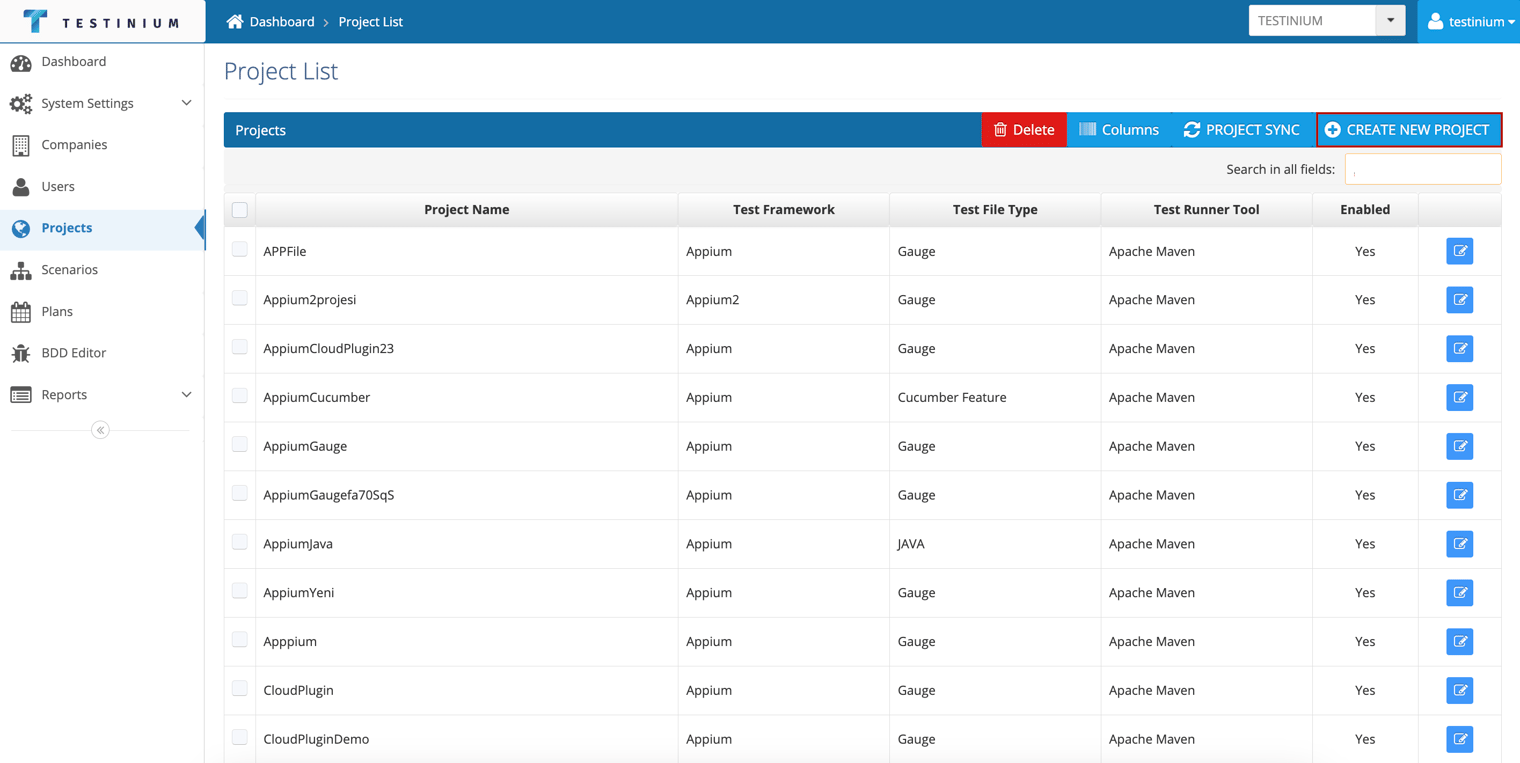
- Click the Create New Project button from Project List.
- The first step to create a project is to choose the environment for it;
- Selenium; selected if testing will be done via web browser.
- Appium; selected if mobile testing will be done.
- Service; selected if web service testing will be performed.
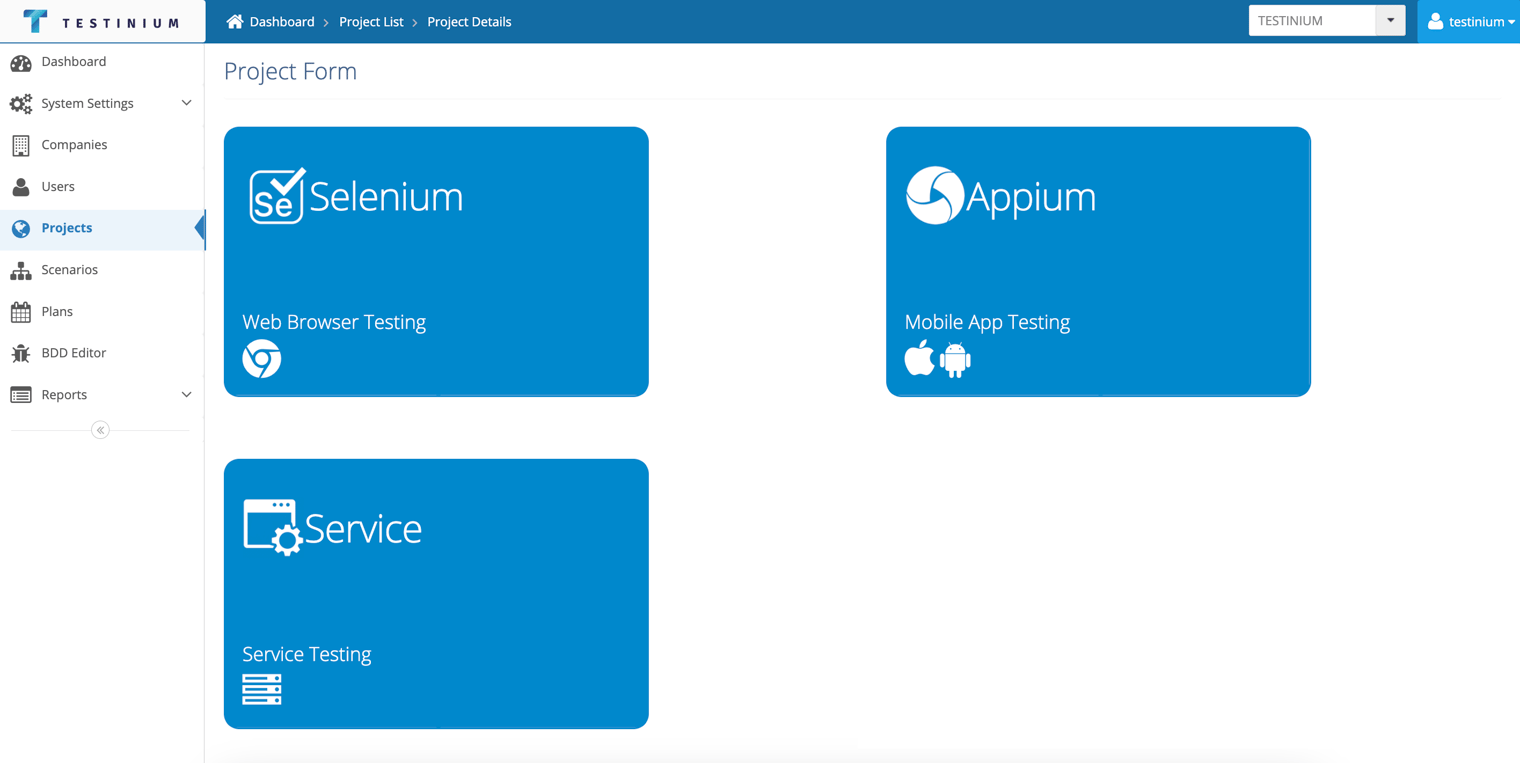
- Project Form is opened by clicking on the selection card.
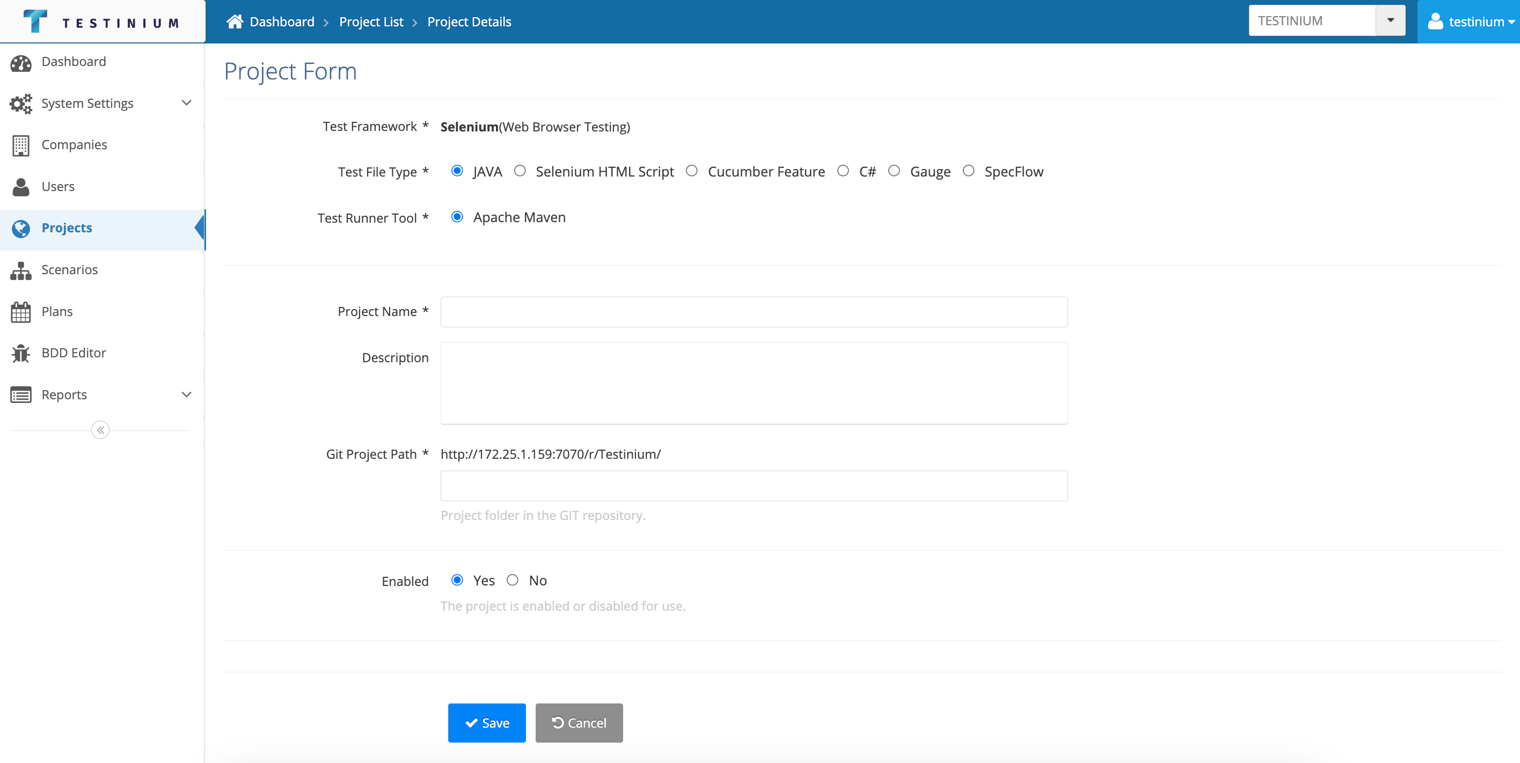
- a. Enter the following fields in the Project Form screen if the selection is Selenium or Service;
- Test Framework
- Test File Type
- Test Runner Tool
- Project Name
- Description
- GIT Project Folder (This is where the test codes are located)
- Enabled
b. Enter the following fields in the Project Form screen if the selection is Appium;
- Test Framework
- Test File Type
- Test Runner Tool
- Project Name
- Description
- GIT Project Folder
- Enabled
- Uploaded Apps
- a. Click the Save button to save a new project to the system.
b. Click the Cancel button to cancel the definition operation.