Apps
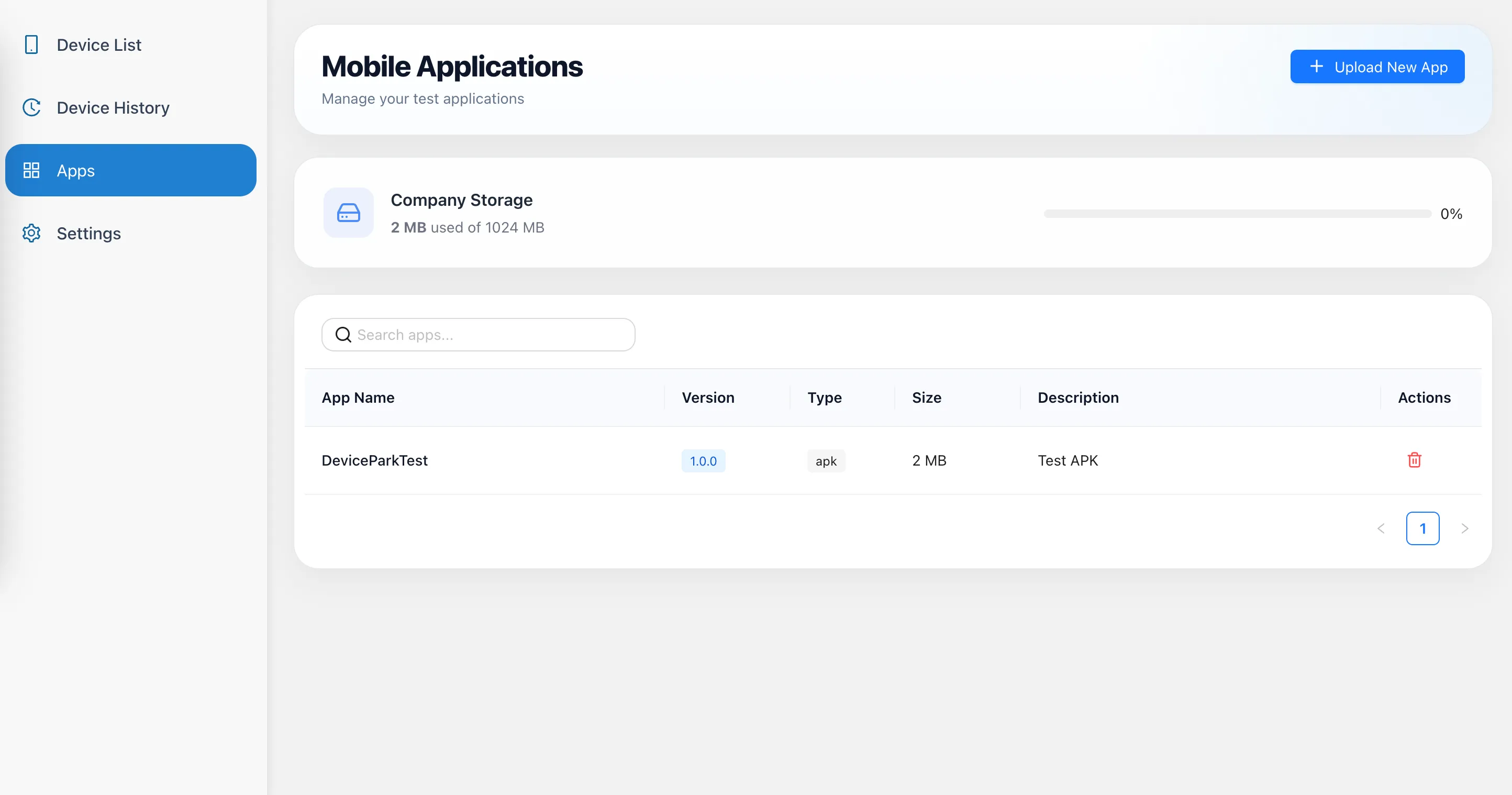
The Mobile Applications page allows users to upload and manage mobile application packages before starting a Live Testing session.
Applications stored here can be installed directly during a Live Testing session, so testers do not need to upload the same build from their local computer every time they connect to a device.
This is especially useful when working with Public Devices, which are reset between sessions. Because previously installed applications are removed during the reset process, the required application may need to be installed again at the beginning of a new session. Pre-uploading application packages makes this process faster and more convenient.
Why Use the Application Library?
The application library is useful for recurring manual testing workflows and for teams that regularly work with multiple application builds.
For example, teams can keep different versions or environments available at the same time, such as:
- Production
- Pre-production
- Staging
- Development
- Release candidate builds
- Previous application versions
During Live Testing, the required build can then be selected and installed without repeatedly locating and uploading files from a local computer.
This can help with:
- Faster session setup – Frequently used applications are already available when a session starts.
- Easy reinstallation – Applications can quickly be installed again after a Public Device has been reset.
- Quick build switching – Testers can move between production, pre-production, staging, or other versions with less preparation.
- Issue reproduction – Previous or alternative builds can be kept available when comparing application behavior.
- Centralized access – Application packages can be stored in one location instead of being maintained separately on individual testers' computers.
Uploading an Application
Click Upload New App to open the Upload Application window.
To upload an application:
- Enter an App Description.
- Select or drag and drop the application package into the App File area.
- Click Upload App.
The description is required and can be used to identify the purpose of the build. For example, it can contain information such as the environment, release, branch, or testing purpose.
Examples include:
- Production – 3.4.0
- Pre-production – Payment Fix
- Release Candidate – September
- Regression Build – 3.5.1
Applications can be selected from the local computer or added by dragging the file into the upload area.
Supported File Types
The upload screen supports the following application package types:
- APK
- IPA
- APP
- ABB
Once the upload is completed, the application becomes available in the Mobile Applications library for use during Live Testing.
Application Information
Uploaded applications are displayed in a table with the following information:
- App Name – The name of the application
- Version – The application version or build identifier
- Type – The uploaded application package type
- Size – The size of the application package
- Description – Information provided for the uploaded build
- Actions – Available management actions
Keeping meaningful descriptions is particularly helpful when multiple builds of the same application are stored.
Company Storage
Uploaded applications use the company's allocated application storage.
The Company Storage section shows:
- The amount of storage currently used
- The total storage capacity
- The percentage of storage currently occupied
Applications that are no longer required can be deleted to free storage for newer builds.
If additional storage capacity is required, customers can contact the Testinium team to request a storage increase based on their needs.
Searching Applications
Use Search apps to quickly find an application in the library.
This is useful when multiple applications or several versions of the same application have been uploaded.
Deleting an Application
Use the Delete action to remove an application package that is no longer required.
Removing outdated or unused builds helps keep the application library organized and makes it easier for testers to select the correct build during a Live Testing session.
Using Uploaded Applications in Live Testing
Applications uploaded to the library can be accessed during an active Live Testing session and installed on the selected device.
This creates a simple workflow for repeated testing:
- Upload the required application builds once.
- Launch an available device.
- Select the required build during the Live Testing session.
- Install it on the device.
- Switch to another stored build when needed.
For teams testing the same application across multiple devices, environments, or versions, this reduces repetitive setup and makes it easier to move between testing scenarios.